Quickstart
This page is the fastest path to run Joulie. For conceptual context first, read Core Concepts.
Prerequisites
- Kubernetes cluster with worker nodes
- Node Feature Discovery (NFD) deployed
- Optional for real enforcement: nodes exposing writable power interfaces
- RAPL power limit files, or
- cpufreq sysfs interfaces
- Prometheus, for measured node power. The chart reads node power from Prometheus by default (
NODE_POWER_SOURCE=prometheus): it expects Prometheus athttp://prometheus-operated.monitoring:9090with its OTLP receiver on (--web.enable-otlp-receiver), receivinghw.energyorhw.powerfor each node. Without that data every node reads 0 W, with sourceprometheus-no-data.values/prometheus-grafana.yamlconfigures kube-prometheus-stack this way (Prometheus settings).examples/11-otel-collector-bridgeconverts Kepler, dcgm-exporter and AMD device-metrics-exporter metrics into those names.- To run without it, set
controllerManager.env.NODE_POWER_SOURCE=static(0 W for every node).
Install from release (recommended)
Install directly from OCI chart release:
helm upgrade --install joulie oci://registry.cern.ch/joulie/joulie \
  --version <version> \
  -n joulie-system \
  --create-namespace \
  -f values/joulie.yaml
helm upgrade never updates CRDs. Before upgrading an existing release, apply the CRDs of the new chart, or the fields they add are pruned:
helm pull oci://registry.cern.ch/joulie/joulie --version <version> --untar --untardir /tmp/joulie-chart
kubectl apply -f /tmp/joulie-chart/joulie/crds/
From a checkout, kubectl apply -f charts/joulie/crds/. Upgrading lists what else to check.
Label nodes managed by the controller manager
Important: Joulie will only target nodes with a specific label, and ignore all the others. By default, install does not auto-select nodes. Default expected selector value is:
joulie.io/managed=true(controller manager envNODE_SELECTOR)
So you must label target worker nodes, for example:
kubectl label node <node-a> joulie.io/managed=true --overwrite
kubectl label node <node-b> joulie.io/managed=true --overwrite
If this is missing, controller manager logs will show no eligible nodes matched selector.
By default, the agent DaemonSet uses the same selector scope (joulie.io/managed=true), so unlabeled nodes will not run agent pods.
Install from source (when developing)
If you changed source code, from repo root:
make build-push TAG=<tag>
make install TAG=<tag>
This pushes:
registry.cern.ch/joulie/joulie-agent:<tag>registry.cern.ch/joulie/joulie-controller-manager:<tag>registry.cern.ch/joulie/joulie-scheduler:<tag>
You can also do build+push+install in one command:
make build-push-install TAG=<tag>
Run make help to see all available targets (including rollout, uninstall, simulator-install, and more).
Install CRDs + components (source workflow)
If images for TAG are already in the registry (no source changes), run:
make install TAG=<tag>
This performs a Helm install/upgrade (charts/joulie) and sets the three images to the requested tag. On an existing release, run kubectl apply -f charts/joulie/crds/ first: helm upgrade never updates CRDs.
Default values come from:
values/joulie.yaml
You can override with:
make install TAG=<tag> HELM_VALUES=<path-to-values.yaml>
Node selection behavior is the same as release install:
- controller manager expects
joulie.io/managed=trueby default - label target nodes before verifying reconciliation
Joulie will only target nodes with that specific label.
To remove Joulie components and CRD:
make uninstall
Update to a new image tag later
make rollout TAG=<new-tag>
When the chart changed, apply its CRDs first (kubectl apply -f charts/joulie/crds/).
Joulie controller manager and agents
Joulie control is a desired-state loop:
- agent discovers per-node hardware and publishes
NodeHardware, - controller manager resolves hardware/inventory and decides per-node target state,
- controller manager writes that desired state into
NodeTwin.spec, - node labels (
joulie.io/power-profile) expose current supply to the scheduler, - agent enforces node-local controls from desired state and telemetry/control profile.
Meaning of the key node labels:
joulie.io/managed=true- node is in controller manager scope (eligible for policy decisions)
joulie.io/power-profile=performance- node currently offers high-performance supply
joulie.io/power-profile=eco- node currently offers low-power supply (resources are throttled according to the selected policy)
Read the architecture path after this quickstart:
Architecture overview:
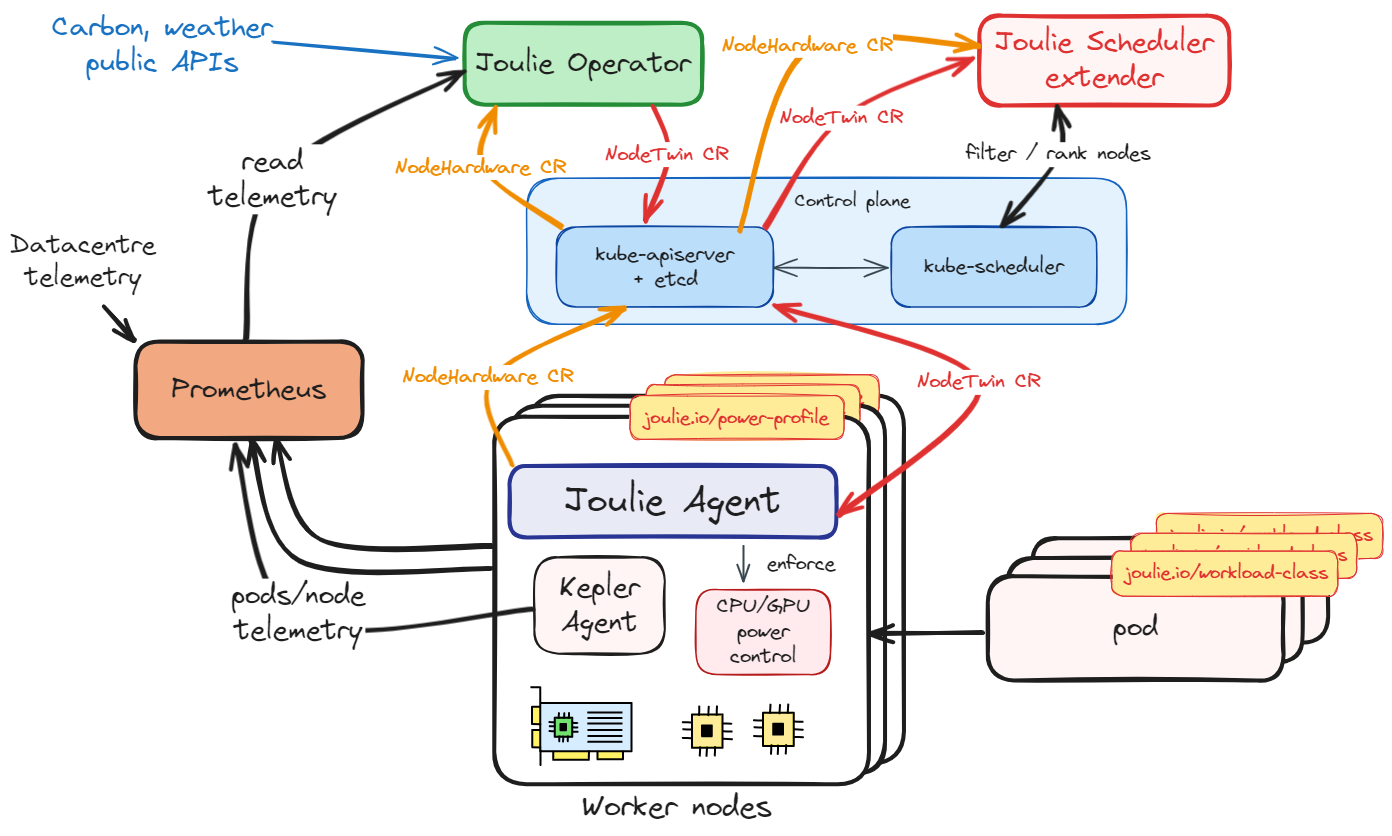
Central controller manager mode
The controller manager continuously writes NodeTwin.spec assignments from the active policy (for example static partition or queue-aware), mapping desired states to node profiles (performance/eco).
Configuration details:
- CRD and Policy Model
- Controller Manager
- Optional runnable manifest walkthrough:
Verify:
kubectl get nodehardwares
kubectl get nodetwins
kubectl -n joulie-system logs deploy/joulie-controller-manager --tail=100
kubectl -n joulie-system logs -l app.kubernetes.io/name=joulie-agent --tail=100
Look for:
NodeHardwareobjects appearing for managed nodes,- controller manager logs mentioning inventory-aware planning or desired-state assignment,
- agent logs containing desired-state source and enforcement/fallback actions.
Also verify installed images:
kubectl -n joulie-system get pods \
  -o custom-columns=NAME:.metadata.name,IMAGE:.spec.containers[0].image,IMAGEID:.status.containerStatuses[0].imageID
If controller manager logs show no eligible nodes matched selector, verify node labels:
kubectl get nodes --show-labels | grep 'joulie.io/managed=true'
Simulator
To try Joulie without the hardware it manages:
- Simulated Cluster: Joulie on emulated bare-metal nodes, on one machine with Docker (
make simcluster-smoke). - KWOK mode: many fake nodes with the agent in pool mode, as the benchmark experiments run;
examples/06-simulator-kwokis a runnable version.
The simulator has its own Helm chart, published next to the Joulie chart (Installation):
helm upgrade --install joulie-simulator oci://registry.cern.ch/joulie/joulie-sim \
  --version <version> \
  -n joulie-sim-demo \
  --create-namespace
Or from source: make simulator-install TAG=<version>.
kubectl plugin
kubectl joulie shows the energy state of the cluster in the terminal: the power each node draws against its cap, its power profile, the caps its agent applied, the digital twin’s scores, and where performance and standard pods run.

Install with Krew
kubectl krew install joulie
kubectl krew upgrade joulie   # later, for a new release
Install from a release
Each GitHub release carries an archive per platform (linux_amd64, linux_arm64, darwin_amd64, darwin_arm64, windows_amd64), with the binary and the license, and the bare binary:
VERSION=v<version>
PLATFORM=linux_amd64
curl -sL "https://github.com/joulie-k8s/Joulie/releases/download/${VERSION}/kubectl-joulie_${VERSION}_${PLATFORM}.tar.gz" | tar xz kubectl-joulie
install kubectl-joulie ~/.local/bin/   # any directory in your PATH
The bare binaries are also in the CERN registry: oras pull "registry.cern.ch/joulie/kubectl-joulie:<version>-linux-amd64" (the version without the v).
Install from source
make kubectl-plugin-install
Usage
kubectl joulie                 # the cluster summary and one row per managed node
kubectl joulie top             # the live dashboard
kubectl joulie node <node>     # one node: hardware, power, twin, applied caps, pods
kubectl joulie pods            # where performance and standard pods run
kubectl joulie -o json         # the same data for scripts
The commands and flags are in the configuration reference.
Next step
Continue with: